
Retrieve files stored in a File Field, including their metadata and temporary download URLs, directly from Jira Automation.
Use this action to access and transfer Jira files to external systems such as Google Drive, SharePoint, document processing services, or other applications.
Available in File Field ADVANCED EDITION for Jira Cloud.
How It Works
The Get File Field files action retrieves information about the files stored in a selected File Field on a Jira work item.
Each file includes metadata and a temporary download URL valid for 1 hour, allowing external systems to download the file without requiring Jira authentication.
The retrieved files are available to subsequent Jira Automation actions through the smart value:
{{fetchedFileFieldFilesList}}
You can access individual files directly or use Advanced branching to process multiple files.
Important: Temporary Download URLs
Download URLs are valid for 1 hour. Anyone with a valid URL can download the file without Jira authentication during that period.
Only share these URLs with trusted external systems, and ensure files are downloaded before they expire.
Configuration
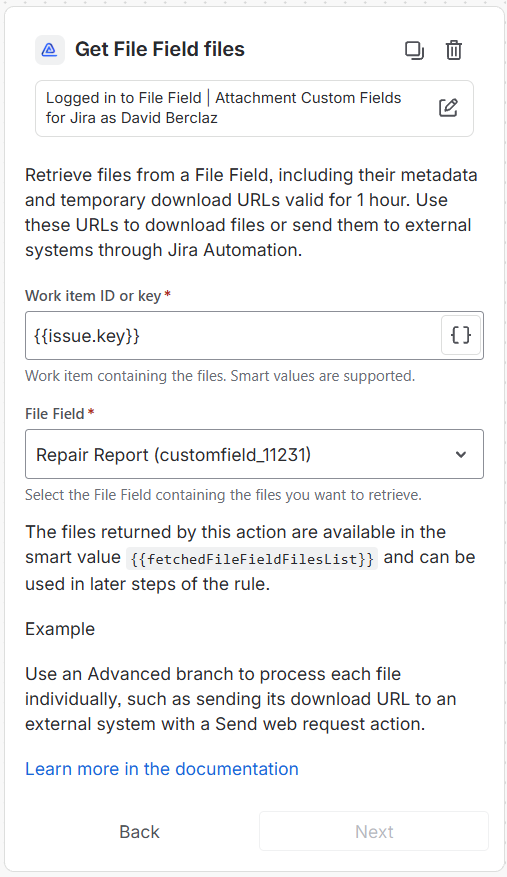
Add the Get File Field files action to your Jira Automation rule.
Configure the following parameters:
|
Parameter |
Description |
|---|---|
|
Work item ID or key |
The Jira work item containing the files. Supports smart values such as |
|
File Field |
Select the File Field containing the files you want to retrieve. |
Accessing Retrieved Files
Individual Files
Use .get(index) to access a specific file, starting at index 0.
For example, to retrieve the name of the first file:
{{fetchedFileFieldFilesList.get(0).fileName}}
Or its temporary download URL:
{{fetchedFileFieldFilesList.get(0).url}}
Multiple Files
To process each file individually, add an Advanced branch with the following configuration:
|
Parameter |
Value |
|---|---|
|
Smart value |
|
|
Variable name |
|
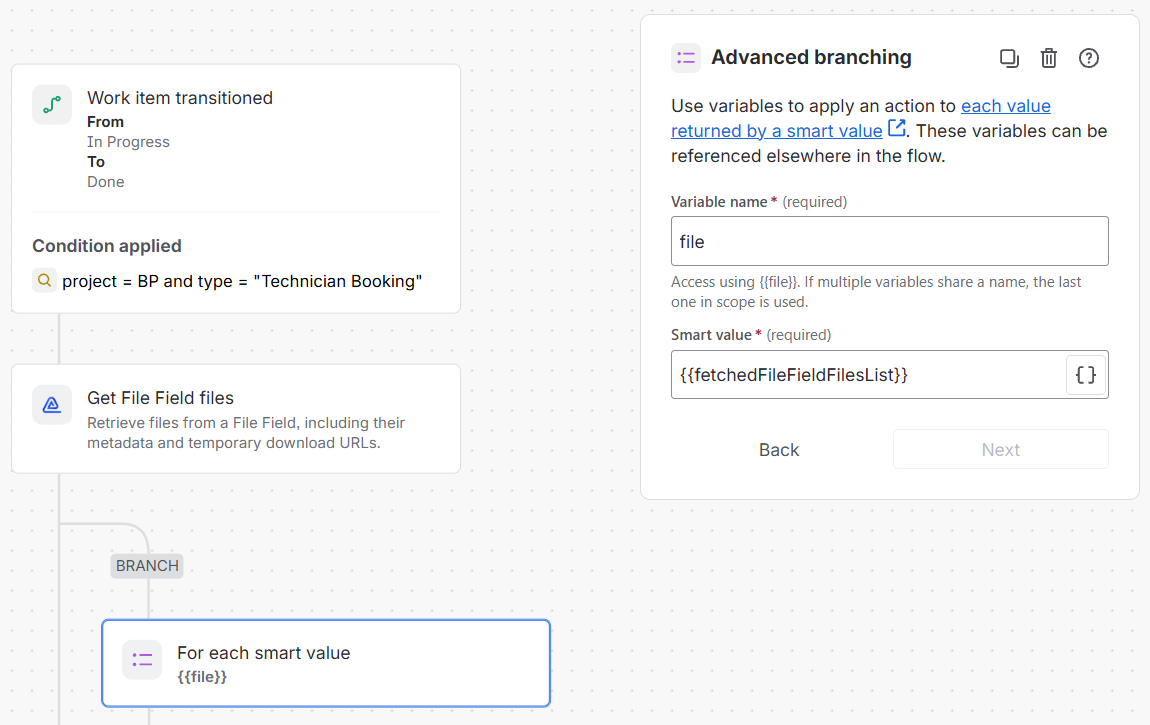
The actions inside the branch execute once for each retrieved file.
You can then access the file properties using the file variable.
Available Smart Values
|
Smart value |
Description |
|---|---|
|
|
ID of the File Field containing the file. |
|
|
Name of the File Field containing the file. |
|
|
Unique storage identifier of the file. |
|
|
Filename, including its extension. |
|
|
MIME type, such as |
|
|
File size in bytes. |
|
|
Temporary download URL, valid for 1 hour. |
|
|
Key of the Jira work item containing the file. |
These properties can be used in subsequent Jira Automation actions.
For example, inside an Advanced branch, use {{file.url}} in a Send web request action to share the file's download URL with an external system.
Use Cases
-
Cloud storage: Automatically archive files in Google Drive, SharePoint, or other storage services. See our example: Archive Documents to Google Drive
-
Document processing: Send invoices, contracts, or reports to external OCR and document processing systems.
-
AI analysis: Send images or documents to AI services for automated analysis.
-
External integrations: Connect Jira files to other applications through automation platforms such as Zapier, Make, or n8n.
Need Assistance?
For support with File Field and Jira Automation, contact our Customer Portal.