
Learn how to automatically archive Jira documents to Google Drive using File Field, Jira Automation, and Zapier.
In this example, we'll automate an IT Equipment Repair process:
-
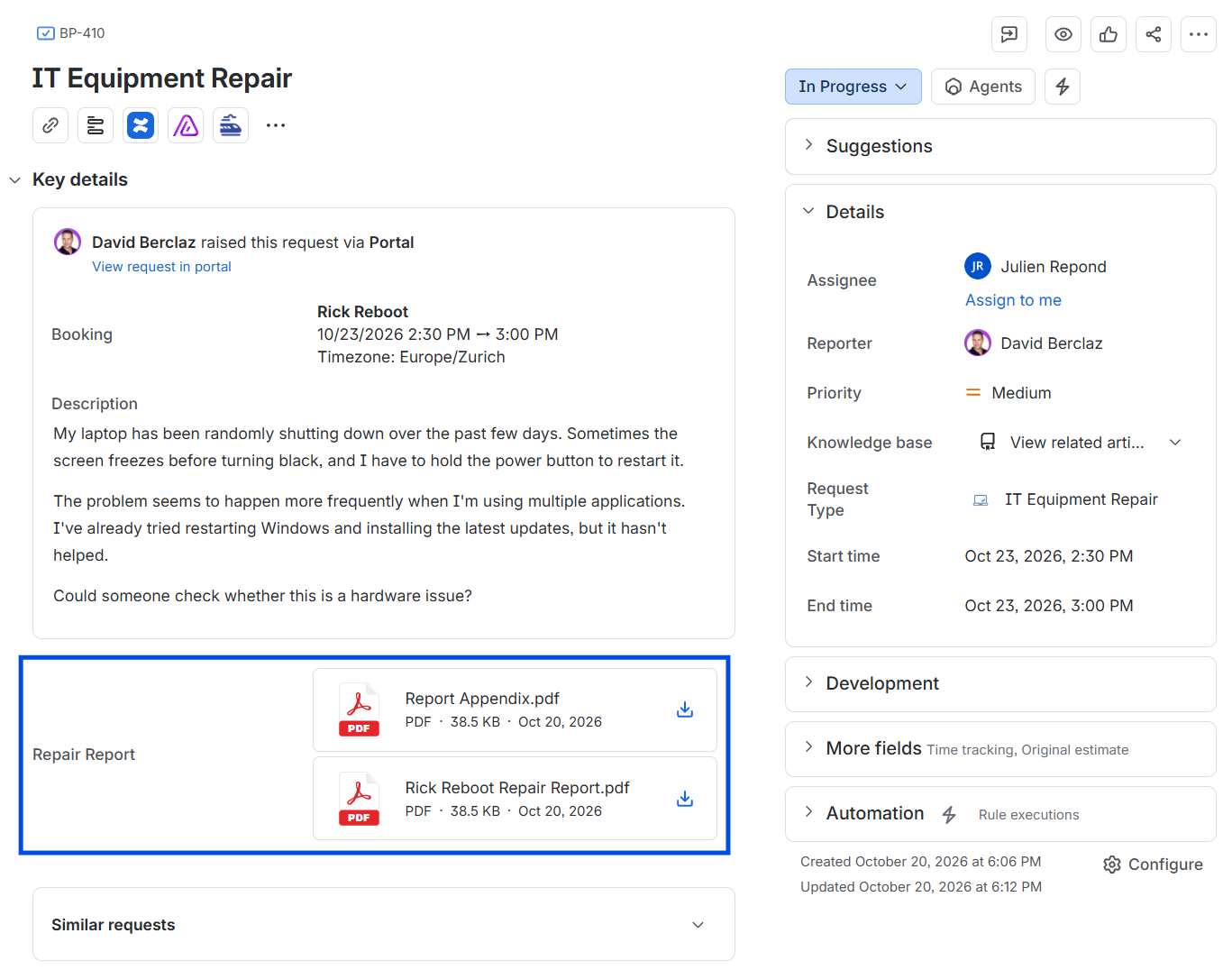
A technician uploads a signed PDF repair report to File Field.
-
When the work item is completed, Jira Automation retrieves the file's temporary download URL.
-
Zapier downloads the PDF and archives it in Google Drive with a standardized filename.
Requirements
-
File Field ADVANCED EDITION installed on Jira Cloud.
-
A File Field configured to store the documents you want to transfer.
-
Permission to create and manage Jira Automation rules.
-
A Zapier account with access to Webhooks by Zapier.
-
A Google Drive account with permission to upload files to the destination folder.
Configuration Overview
We'll use Jira Automation and Zapier to automatically archive repair reports in Google Drive.
Jira Automation
-
Triggers when a repair request transitions to Done.
-
Retrieves the files using the Get File Field files action.
-
Sends each file's metadata and temporary download URL to Zapier.
Zapier
-
Receives the file information through a webhook.
-
Downloads and uploads each file to Google Drive with a standardized filename.Uploads the file to Google Drive with a standardized filename.
Step 1: Configure the Repair Report Field
In this example, employees book repair appointments with IT technicians through a Jira Service Management portal.
After completing the repair, the technician uploads a signed PDF to a File Field named Repair Report.
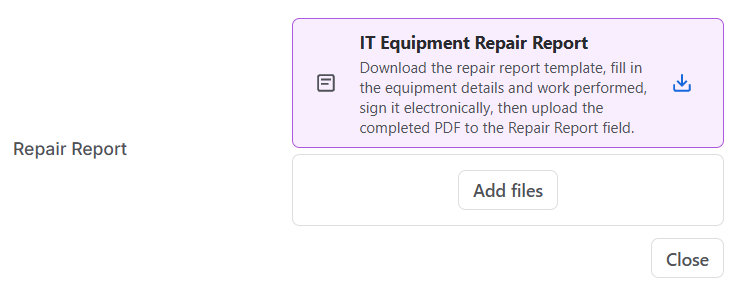
We also use File Field's Templates & Resources feature to provide a downloadable repair report template that technicians can fill in and sign electronically.
Require a Repair Report Before Completion
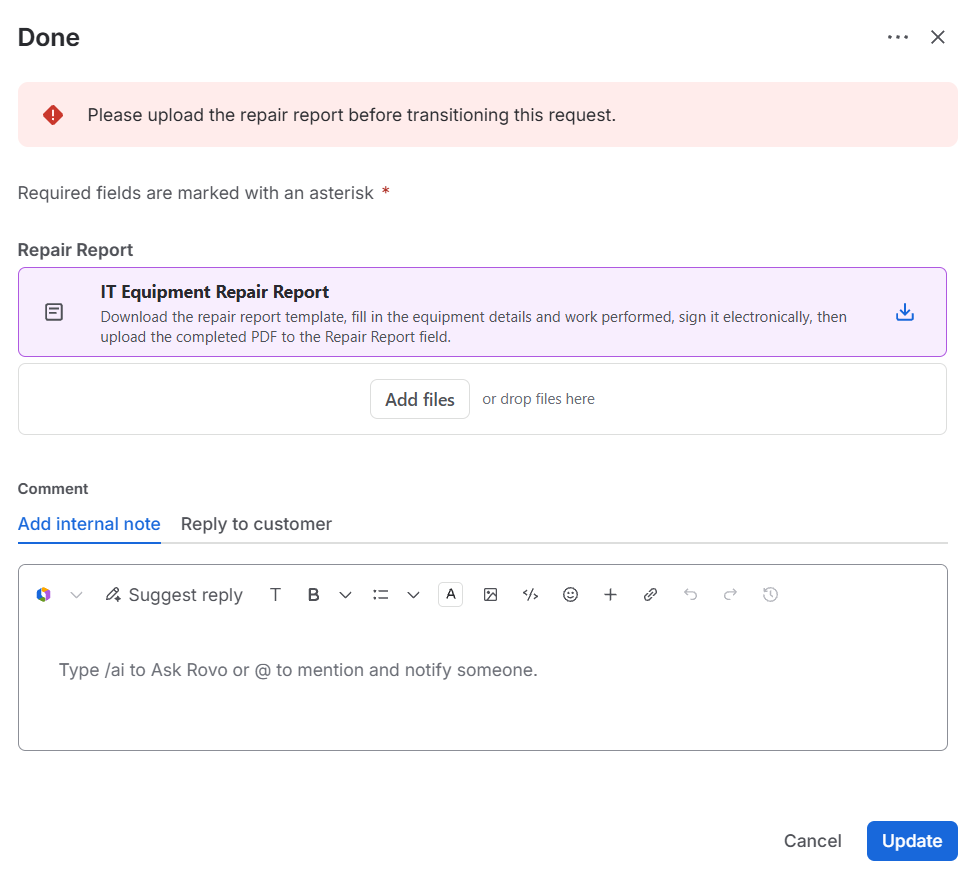
To ensure every repair is properly documented, we use a File Field workflow validator to prevent the work item from transitioning to Done if the Repair Report field is empty.
Optionally, you can add the field to the transition screen, allowing technicians to upload the missing report directly when completing the repair. This ensures the required document is available before Jira Automation sends it to Google Drive.
Step 2: Create a Zapier Webhook
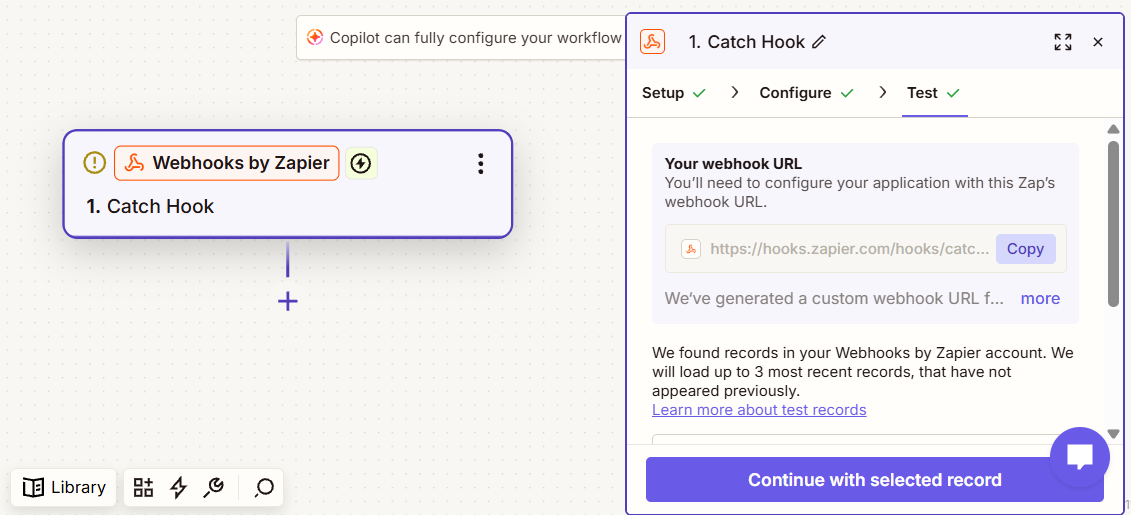
In Zapier, create a new Zap with Webhooks by Zapier as the trigger.
Configure:
|
Parameter |
Value |
|---|---|
|
Trigger App |
Webhooks by Zapier |
|
Trigger Event |
Catch Hook |
|
Pick Off A Child Key |
Leave empty |
Zapier generates a unique webhook URL.
Copy this URL. We'll use it in the Jira Automation rule.
Step 3: Create a Jira Automation Rule
Create a Jira Automation rule named Archive Repair Reports to Google Drive with the following configuration.
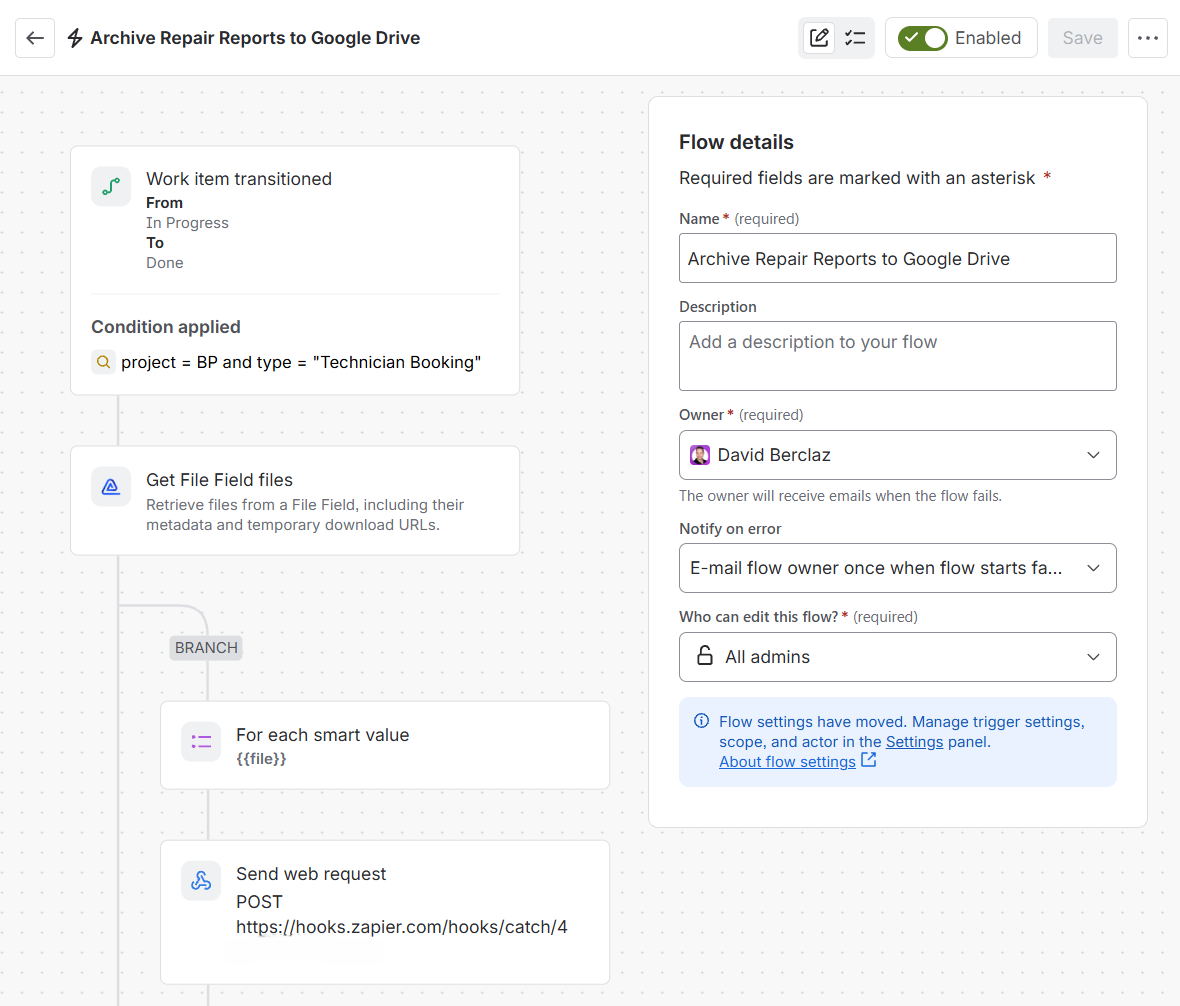
Trigger: Work item transitioned
The rule runs when an IT Equipment Repair work item transitions from In Progress to Done.
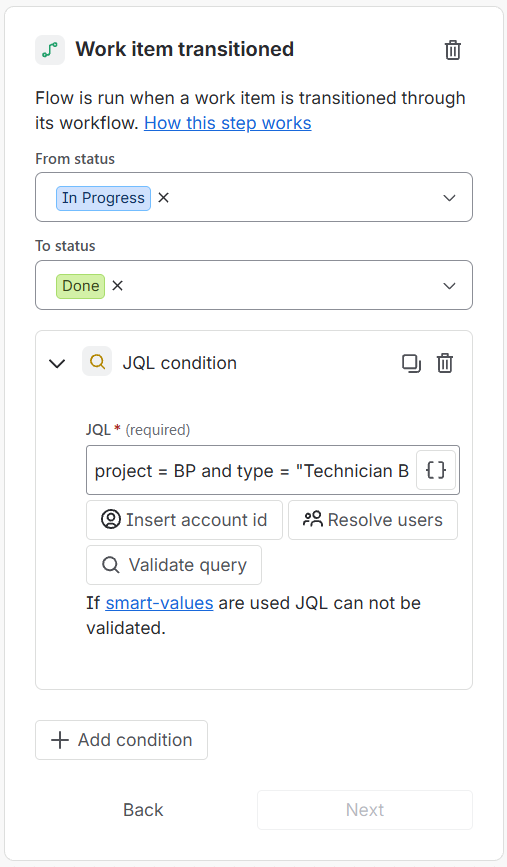
JQL condition:
project = BP AND type = "Technician Booking"
Replace the Jira space key and work type with your own values. If multiple request types share the same work type, add further conditions to restrict execution to the intended requests.
Action: Get File Field files
Add the Get File Field files action to retrieve the Repair Report and its temporary download URL.
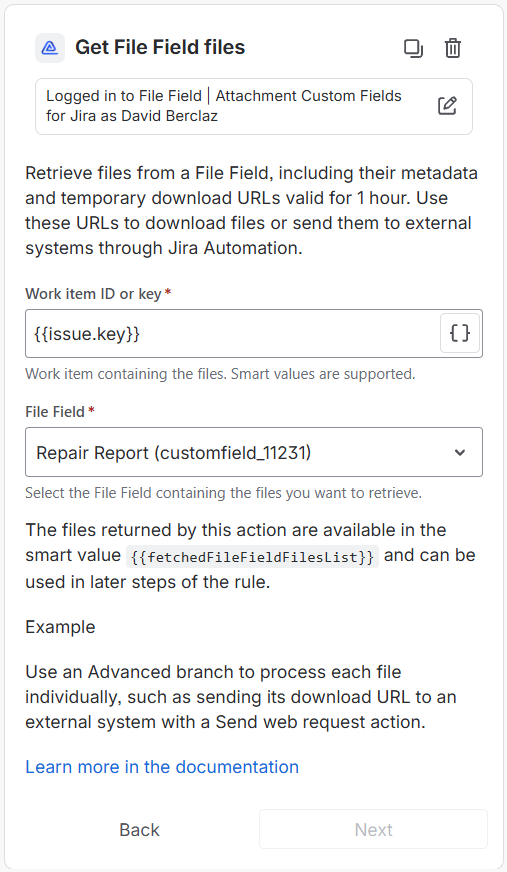
Work item ID or key:
{{issue.key}}
File Field: Repair Report
The action makes the retrieved files available through:
{{fetchedFileFieldFilesList}}
Each file includes its metadata and a temporary download URL valid for 1 hour.
See Get File Field files for more information about the action and its available smart values.
Branch: Advanced branching
Add an Advanced branch to process each retrieved file individually.
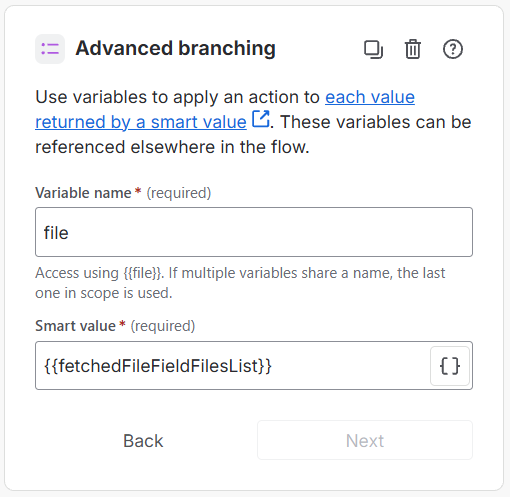
Variable name:
file
Smart value:
{{fetchedFileFieldFilesList}}
The actions inside this branch execute once for each file returned by File Field.
Action: Send web request
Inside the branch, add a Send web request action to send the file information to Zapier.
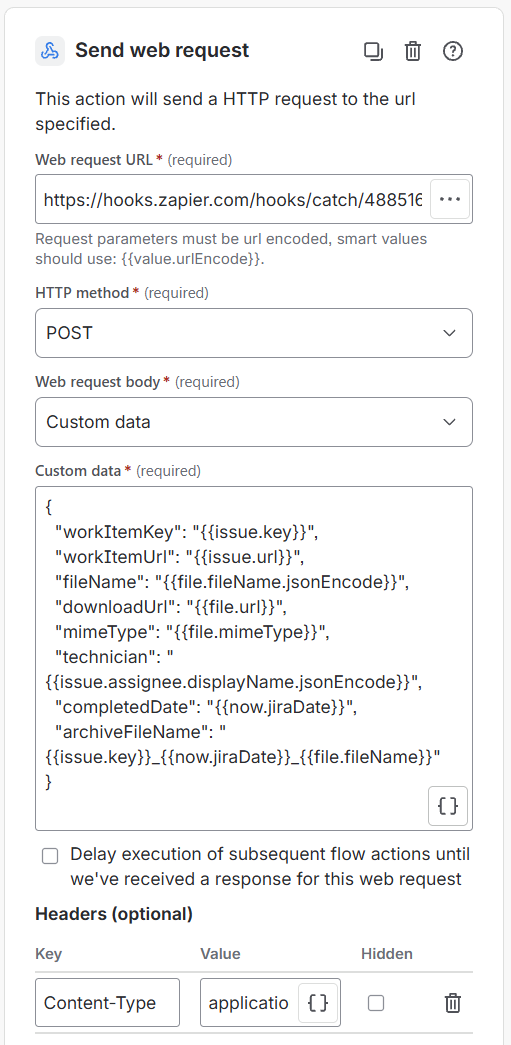
Web request URL: Paste the webhook URL generated in Step 2.
HTTP method: POST
Web request body: Custom data
Custom data:
{
  "workItemKey": "{{issue.key}}",
  "workItemUrl": "{{issue.url}}",
  "fileName": "{{file.fileName.jsonEncode}}",
  "downloadUrl": "{{file.url}}",
  "mimeType": "{{file.mimeType}}",
  "technician": "{{issue.assignee.displayName.jsonEncode}}",
  "completedDate": "{{now.jiraDate}}",
  "archiveFileName": "{{issue.key}}_{{now.jiraDate}}_{{file.fileName}}"
}
Headers
|
Key |
Value |
|---|---|
|
Content-Type |
application/json |
The {{file.url}} smart value provides the temporary download URL generated by File Field.
The archiveFileName property defines the filename to use in Google Drive. In this example, it combines the Jira work item key, completion date, and document type.
For example:
BP-409_2026-10-20_Repair-Report.pdf
You can customize the information sent to Zapier or the filename format to meet your requirements.
Step 4: Configure the Zapier Workflow
Now that Jira Automation is configured, return to Zapier.
Trigger: Catch Hook
Run the Jira Automation rule on a work item containing a Repair Report PDF.
In Zapier, click Test trigger to retrieve the data sent by Jira.
You should see the work item key, filename, temporary download URL, MIME type, completion date, and archive filename.
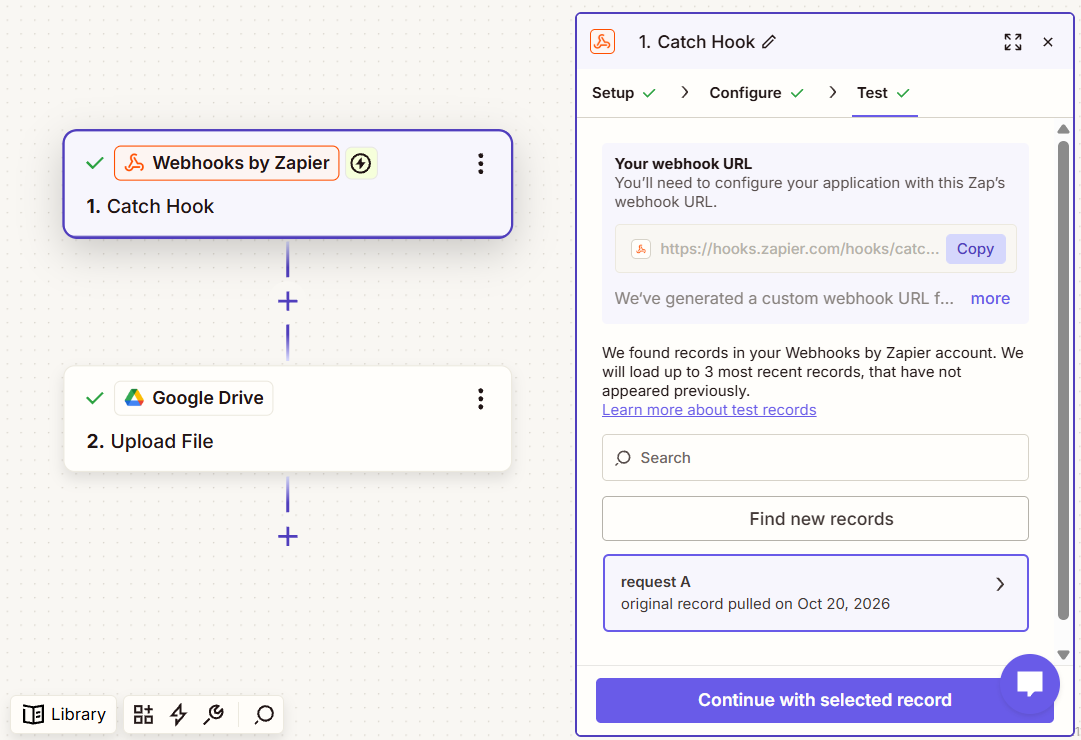
Select the received record to continue configuring your Zap.
Action: Google Drive - Upload File
Add a second step using the Google Drive app.
Select the Upload File action.
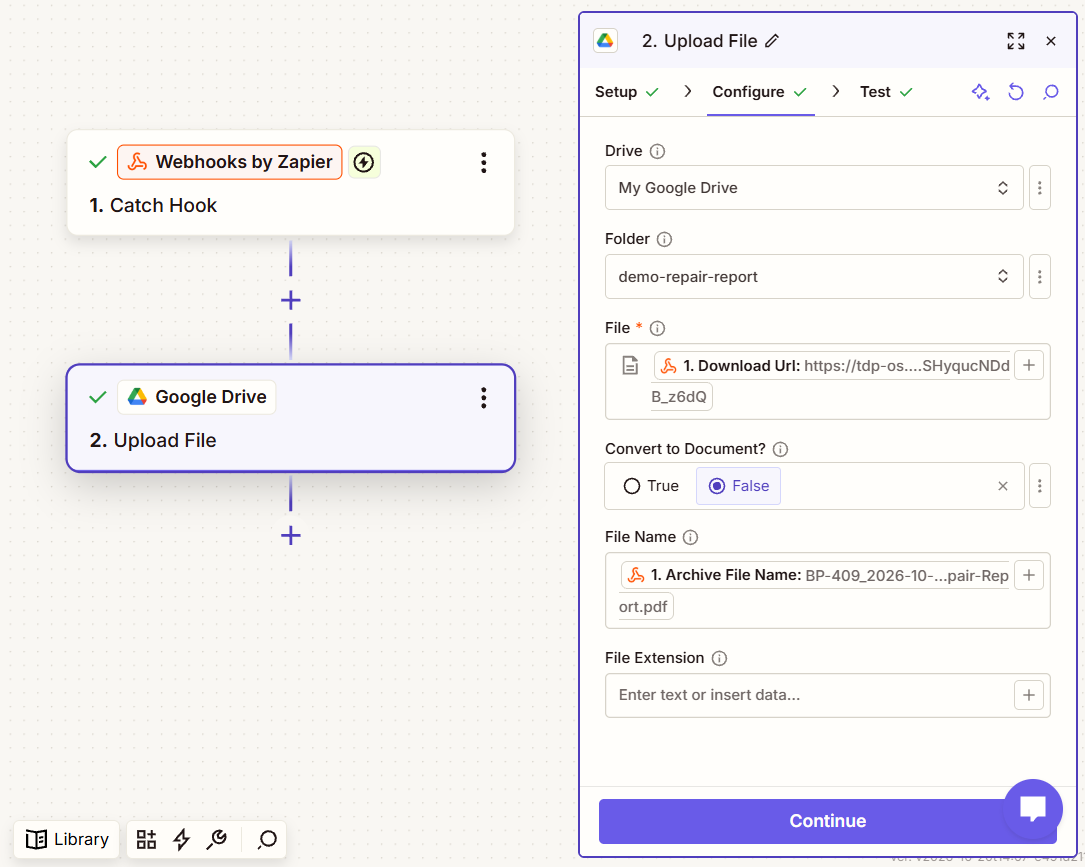
Configure the following parameters:
|
Parameter |
Value |
|---|---|
|
Drive |
My Google Drive |
|
Folder |
demo-repair-report |
|
File |
Download Url from Catch Hook |
|
Convert to Document? |
False |
|
File Name |
Archive File Name from Catch Hook |
|
File Extension |
Leave empty, as the filename already includes .pdf |
The File parameter must reference the temporary download URL received from Jira Automation.
Zapier will download the actual PDF and upload it to the selected Google Drive folder.
The File Name parameter uses the standardized filename generated by Jira Automation.
Test Your Automation
Test the complete process:
-
Create an IT Equipment Repair request and book an appointment with a technician.
-
Upload a completed and signed Repair Report PDF to File Field.
-
Transition the Jira work item from In Progress to Done.
-
Check the Jira Automation audit log and Zapier execution history.
-
Open the Google Drive folder and verify that the file was uploaded successfully.
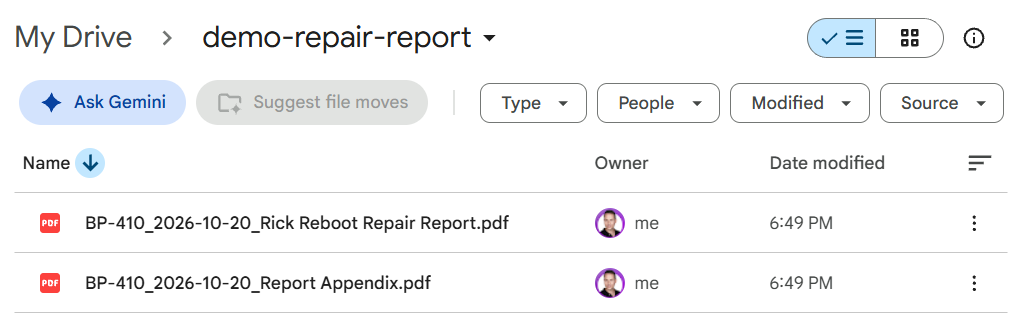
The resulting document will have a filename similar to:
BP-409_2026-10-20_Repair-Report.pdf
Once your Zap is published and enabled, future completed repair requests will automatically trigger the same file transfer.
Important: Temporary Download URLs
File Field download URLs are valid for 1 hour. Anyone with a valid URL can download the associated file without Jira authentication during that period.
Only share these URLs with trusted external systems, and ensure files are downloaded before they expire.
Need Assistance?
For support with integrating File Field and Jira Automation, reach out to our Customer Portal.