
In order to access your File Field options:
-
Click the gear icon in the top navigation and select Marketplace apps.
-
In the File Field section in the side navigation, click Configure next to the field to configure.
-
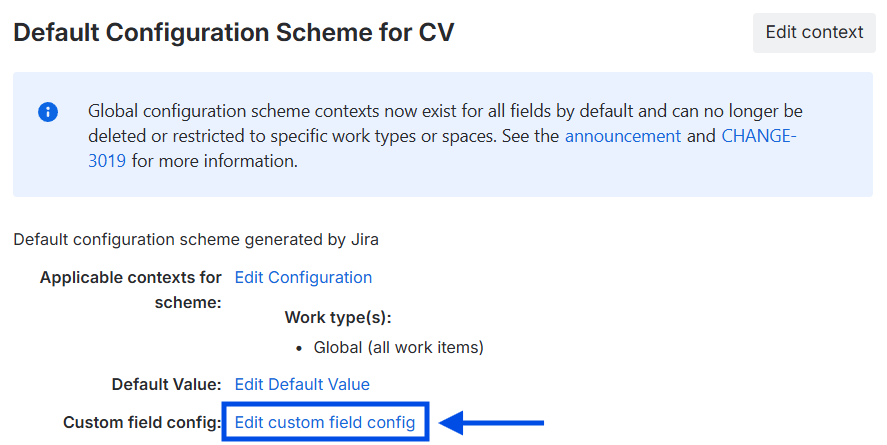
In the Configuration Scheme you want to edit, click Edit custom field config.
Use these settings to control how many files users can upload, which file types are accepted, and the maximum permitted file size.
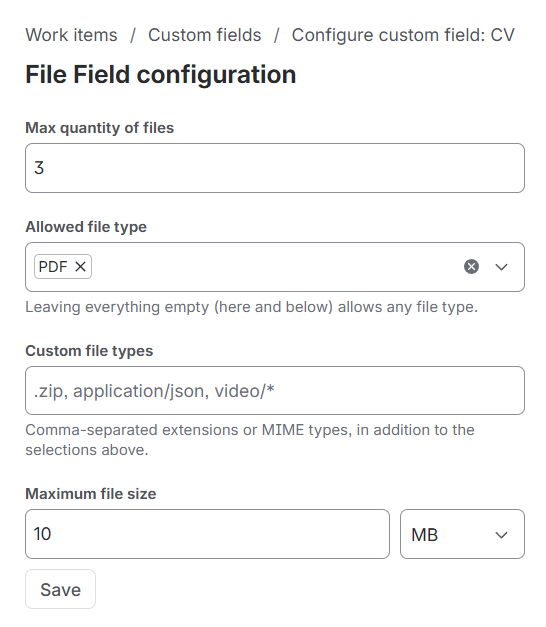
Max quantity of files
Defines the maximum number of files that can be uploaded to the field.
For example, enter 1 to allow only one file or 5 to allow up to five files.
Allowed file type
Select one or more predefined file-type categories from the dropdown.
Depending on the available options, categories may include images, documents, audio files, videos, archives, or other common file formats.
Leave this field and Custom file types empty to allow any file type.
Custom file types
Enter additional file extensions or MIME types that should be accepted.
Separate multiple values with commas.
Examples:
.zip, .json, video/*
application/json, application/pdf
You can use:
-
File extensions, such as
.zipor.csv -
Exact MIME types, such as
application/json -
MIME type wildcards, such as
video/*
Custom file types are added to the predefined categories selected under Allowed file type.
Maximum file size
Defines the maximum permitted size for each uploaded file.
Enter a numeric value and select the corresponding unit, such as kB or MB.
For example, 100 kB means that each uploaded file must be no larger than 100 kilobytes.
Files exceeding this limit cannot be uploaded.
Save the configuration
Select Save to apply the configuration.
The restrictions will be checked whenever a user uploads a file to this field. Existing files are not modified when the configuration changes.